Here’s a free (yes free) way to adjust your headphones when mixing and mastering so they are sonically neutral and you are getting unbiased results out of them.
Headphones are imperfect, and improperly adjusted headphones can lead to poor mixing results. You may notice an exaggerated or diminished bass response, and the same can occur with treble and other frequencies. Headphones inherently have imperfections; although manufacturers strive to create a flat frequency response, none manage to achieve it perfectly. This is why compensation is necessary if you want a genuinely flat response. Although headphone makers try to have a flat response for their products, none actually do. This is why compensation is needed if you want to have a flat response.
Luckily, there is a method to adjust your headphones to match what you should hear while mixing, mastering, or engaging in any audio work, and it’s free.
This video (below) told me everything I needed to know about this:
The site referenced in the video is autoeq.app and all I did was this:
- Find my headphones on the list.
- Select my equalizer app on the right side.
- Get out my favorite equalizer and make the settings suggested.
- Put it on my C bus in FL Studio, which is for the channel currently selected, and I was done.
You could put it on the master or wherever you need to hear exactly what is going on in your music in a non-biased way.
Here is the output the site gave me for my particular set of headphones:

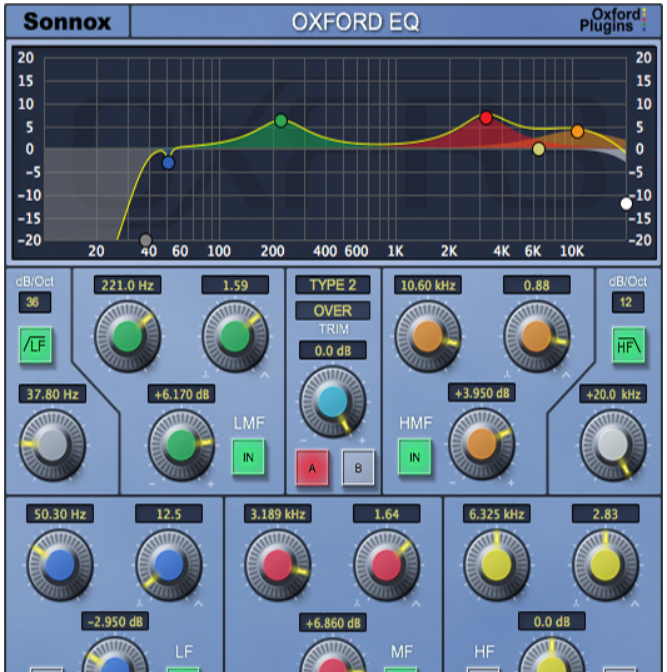
Then I dialed it into my favorite equalizer:

Now, I can easily turn it on and off to hear precisely what is happening in my music without bias.
Here’s another set for my 599’s:
